
Just need the CSV?
Convert your supported PDF bank statement and export the transaction data. Take it to Excel or software that accepts your CSV format.
Import PDF Export CSV
PDF to CSV in seconds.
Import your bank statements. Export CSV straight away, or map, allocate and reconcile in SmartBank before exporting to your accounting package.
CSV exports with or without allocations—you choose.
For accountants, bookkeepers and business owners.
Windows software · Supported PDF, CSV, OFX, OFC & text imports
Unlimited imports · No per-statement conversion fee
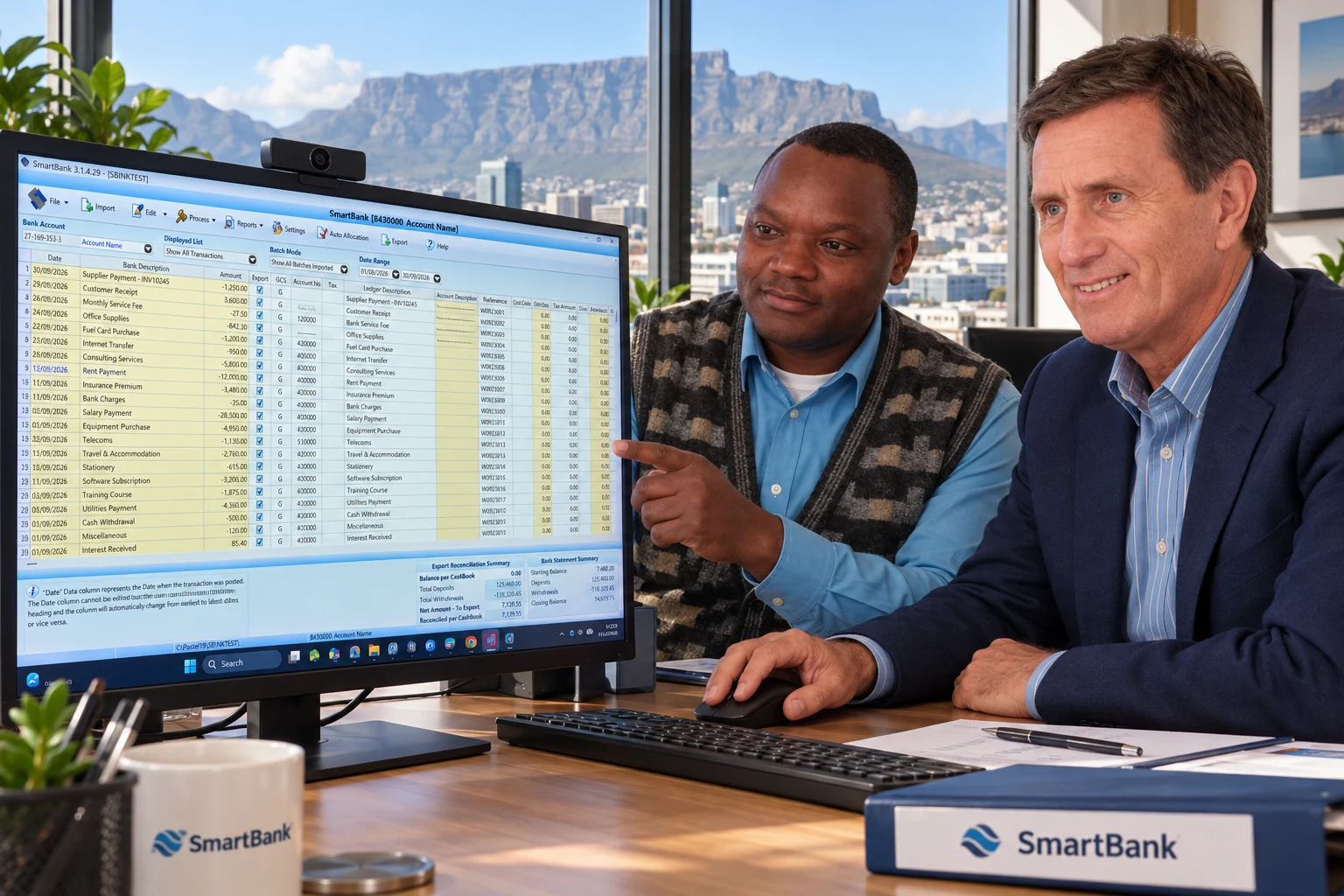
More accounting package options coming. Ask us about yours. Compatibility depends on your package, version and setup.
Your statements. Your cashbook.
From a bank statement to a cashbook ready for your accounting package.
▶ Watch the PDF import videoYour bank statement
Into SmartBank
Supported PDF → CSV automaticallyReview and reconcile transactions
Ready for your accounting package
Choose the right format for your accounting package.One package. Two ways to finish.
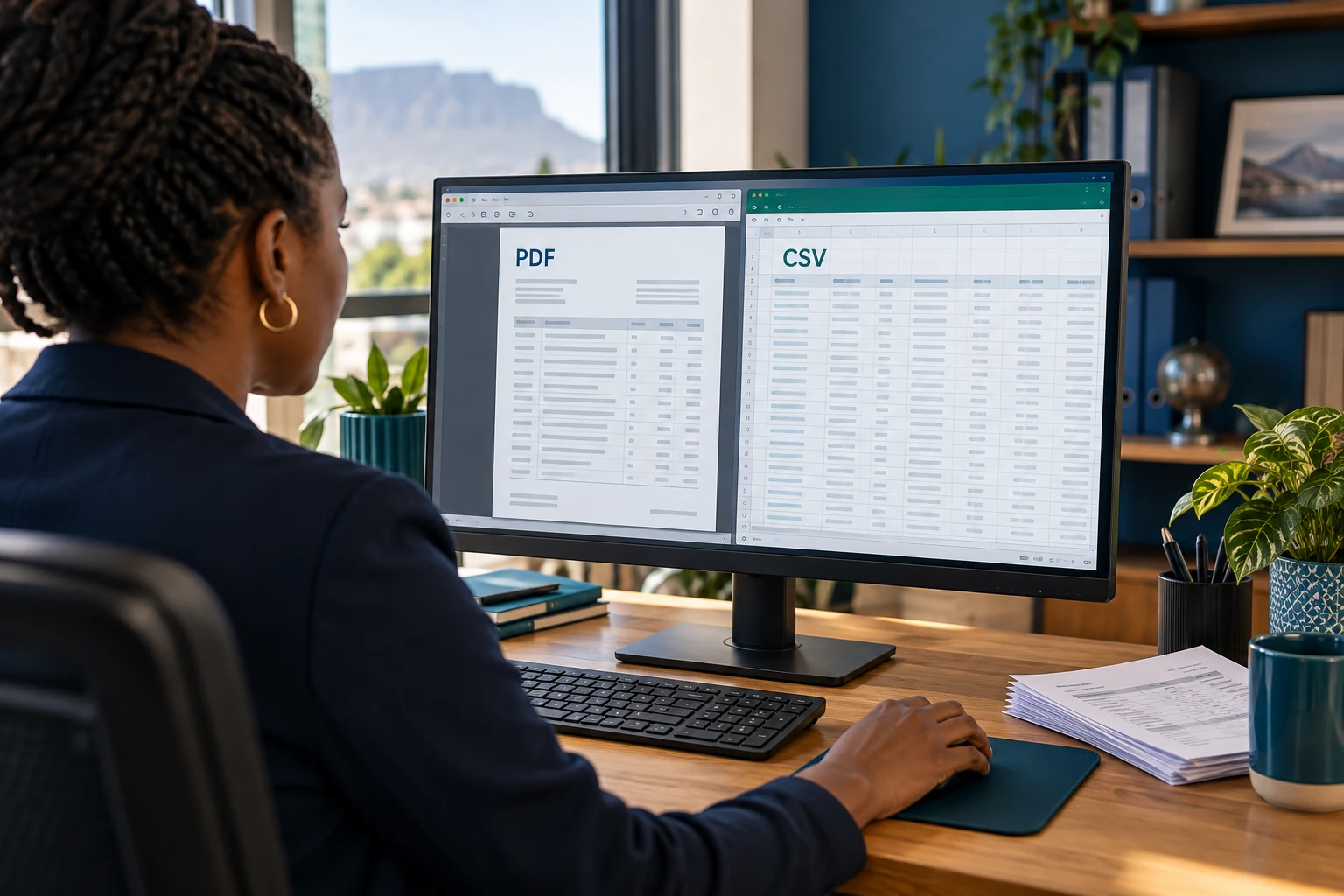
Convert your supported PDF bank statement and export the transaction data. Take it to Excel or software that accepts your CSV format.
Import PDF Export CSV
Map, allocate and reconcile in SmartBank. Export the prepared transactions in the format your accounting package needs.
Import Allocate Reconcile Export
For your own books or your clients’ monthly cashbooks.
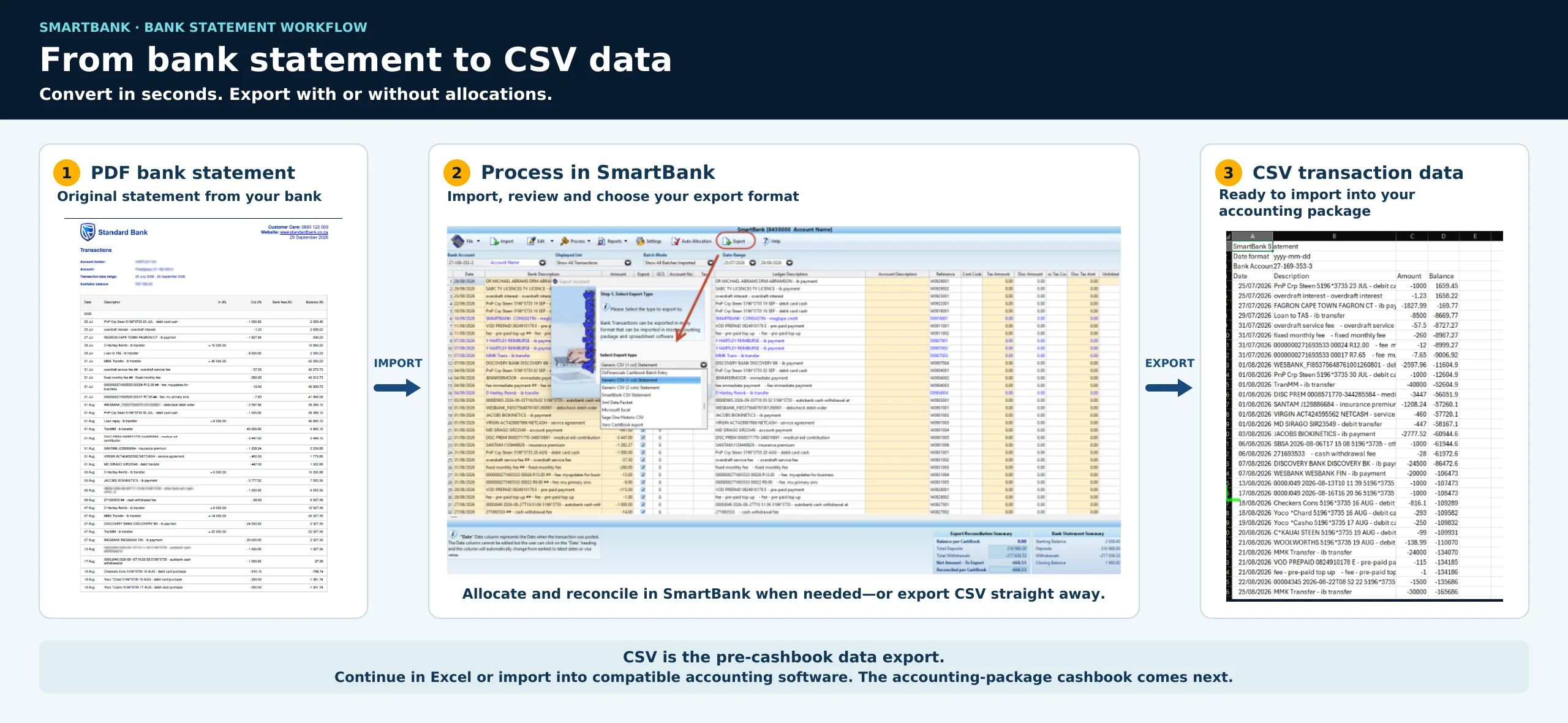 Enlarge the statement-to-CSV workflow
See it working with a real bank statement.
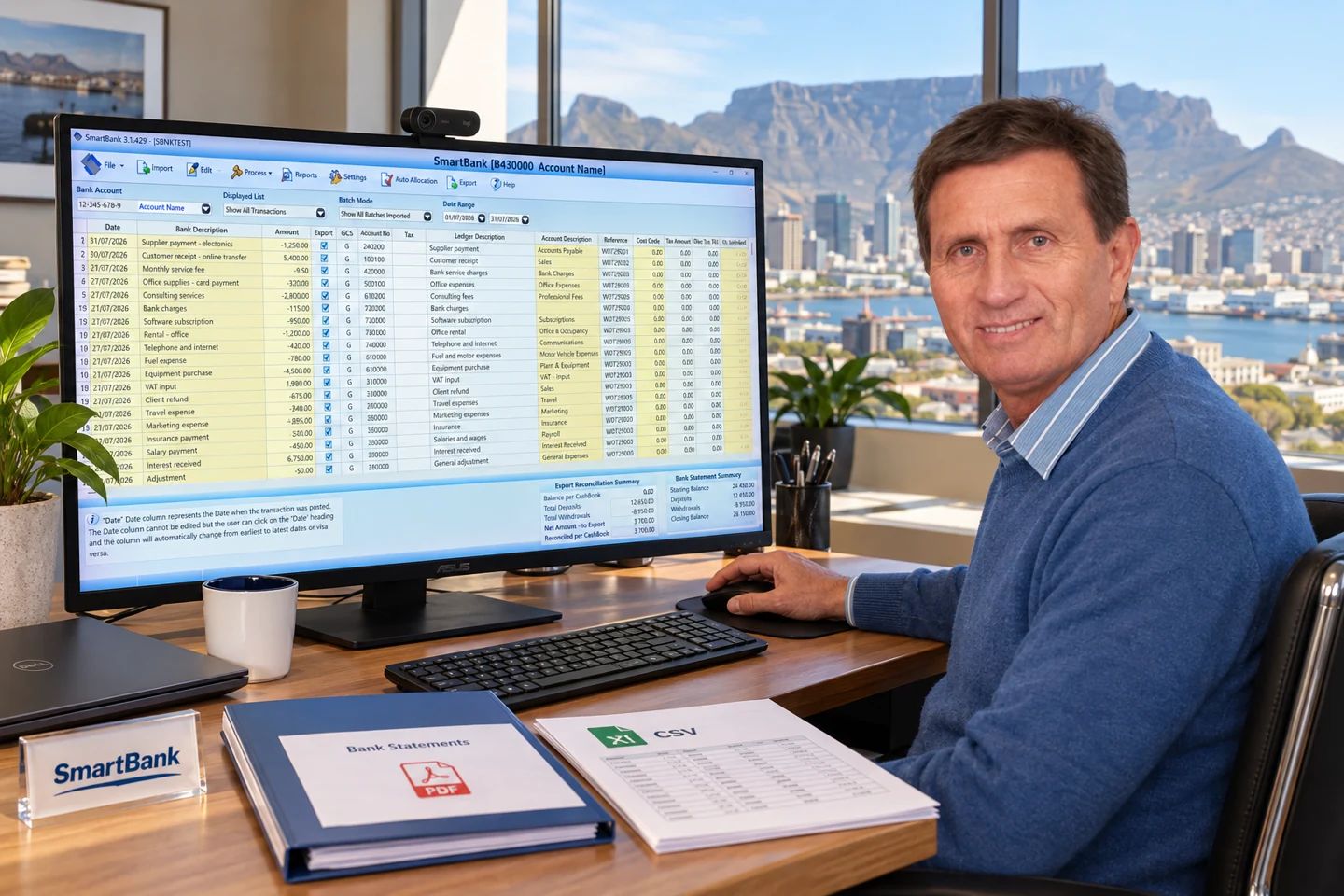
Watch the workflow
See the import, review the transactions and choose your export. Follow David’s demonstration with your own supported bank statement.
Explore the learning centre →New · Automatic PDF-to-CSV import
Import supported original bank-issued PDFs, then export the CSV straight away. Or map, allocate and reconcile in SmartBank before exporting your prepared cashbook in the format your accounting package needs.
No separate converter. No copying transactions into an AI chat. No extra CSV-formatting step before SmartBank import.
Import your supported original bank PDF, then export CSV transaction data without accounting allocations. Finish the bookkeeping in your accounting package.
See accounting package options →Reuse allocations, edit and split transactions, and reconcile in SmartBank. Export the prepared transactions with allocations in the format your accounting package needs.
Explore allocation tutorials →Already have CSV, OFC or OFX files? Import your bank’s files directly. SmartBank works offline on Windows and prepares transactions for desktop or online accounting software.
Use original bank-issued PDFs. Scans, photographs and image-only PDFs are not supported. PDF conversion produces CSV, not OFX or OFC. Support depends on the bank and statement layout.
Enter your details in the pop-up, then download the Windows ZIP. Close it to continue browsing here.
First-time users
Get a 15-day free trial and confirm your bank statement and accounting package setup.
Try SmartBank free for 15 days ↗Already using SmartBank?
The new PDF import feature is included for existing users. Get in touch for the current update.
Get help with the update ↗No more capturing. Just import and convert in a few seconds.
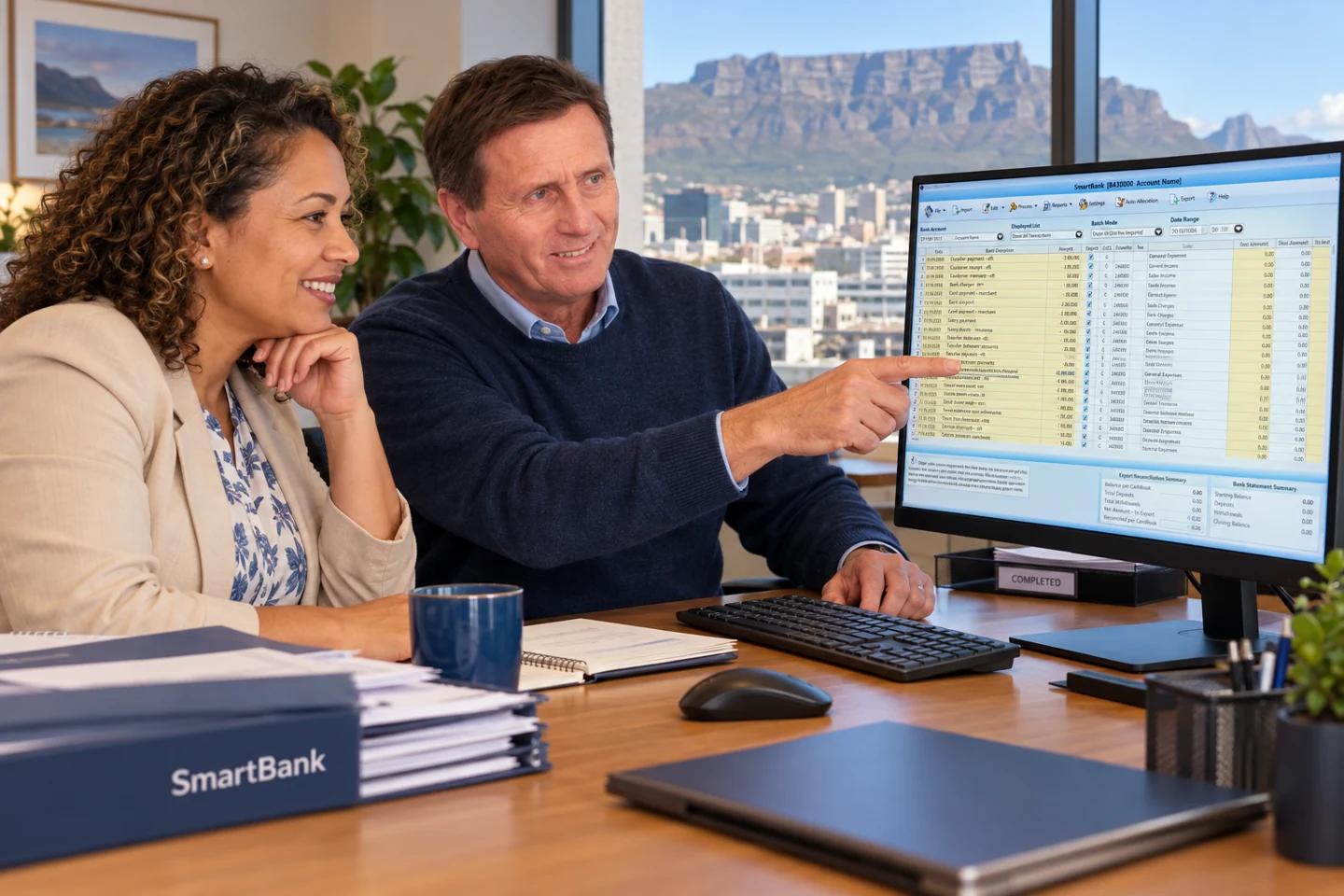
Move high-volume client cashbooks through a repeatable, reviewable process.
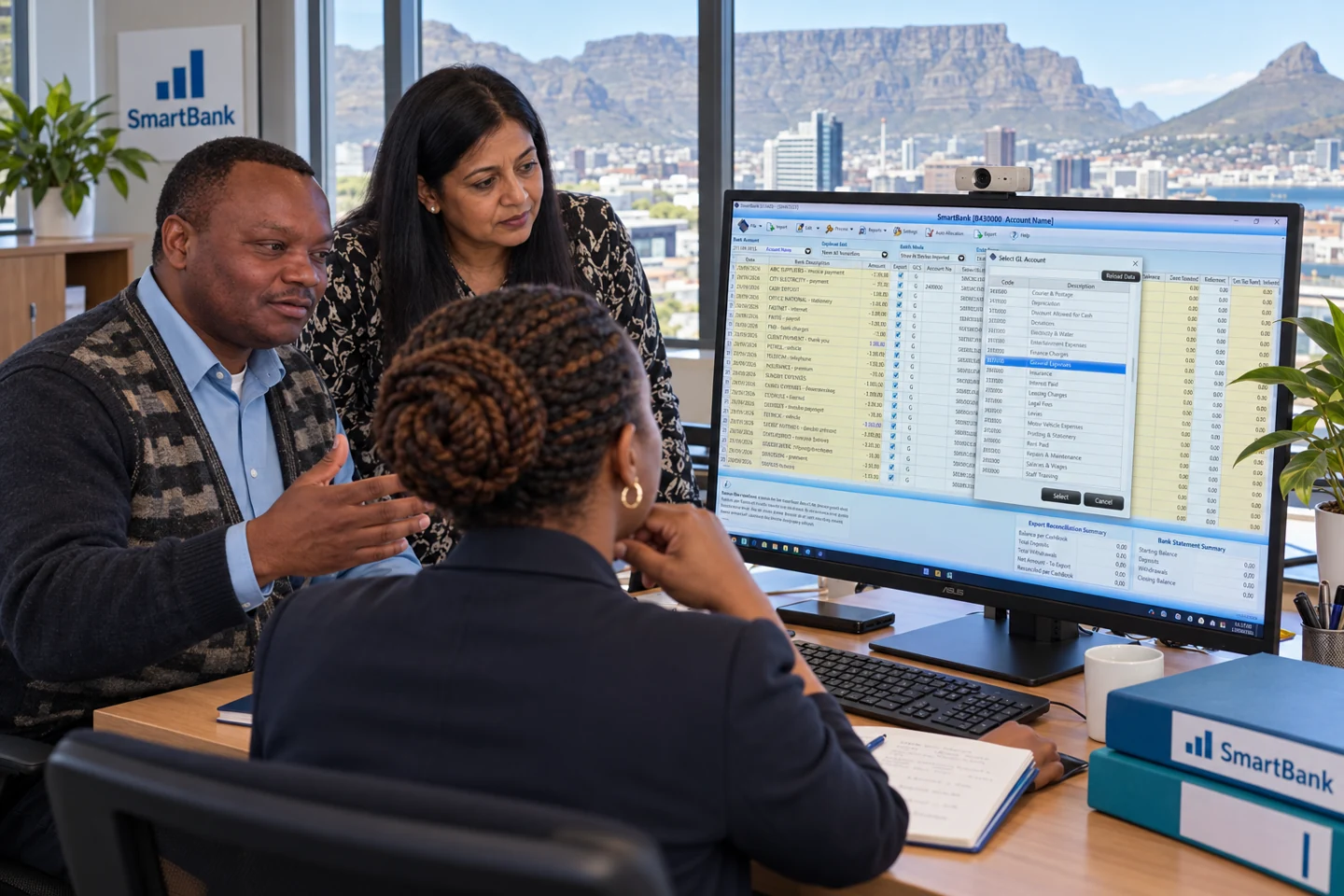
Reuse allocations, tidy descriptions and reconcile before anything reaches the ledger.

Keep an eye on cashbook progress and give your bookkeeper the tools to finish accurately and on time.
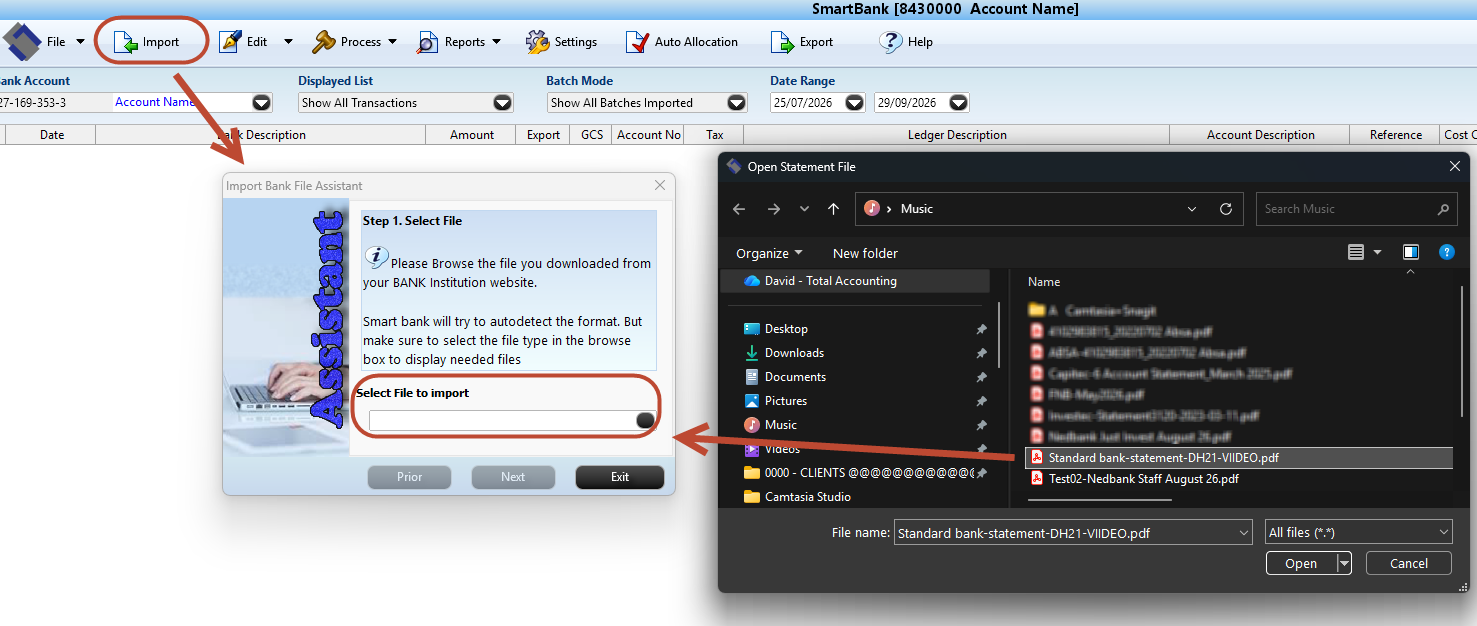
New Automatic PDF conversion
SmartBank’s new workflow converts supported PDF bank statements into transaction data inside the import process—removing the separate conversion step that used to slow people down.
Use the original PDF bank statement downloaded directly from your bank. Scanned statements, photographs and image-only PDF copies are not supported. Support also depends on the bank and statement layout. Contact us to confirm compatibility.
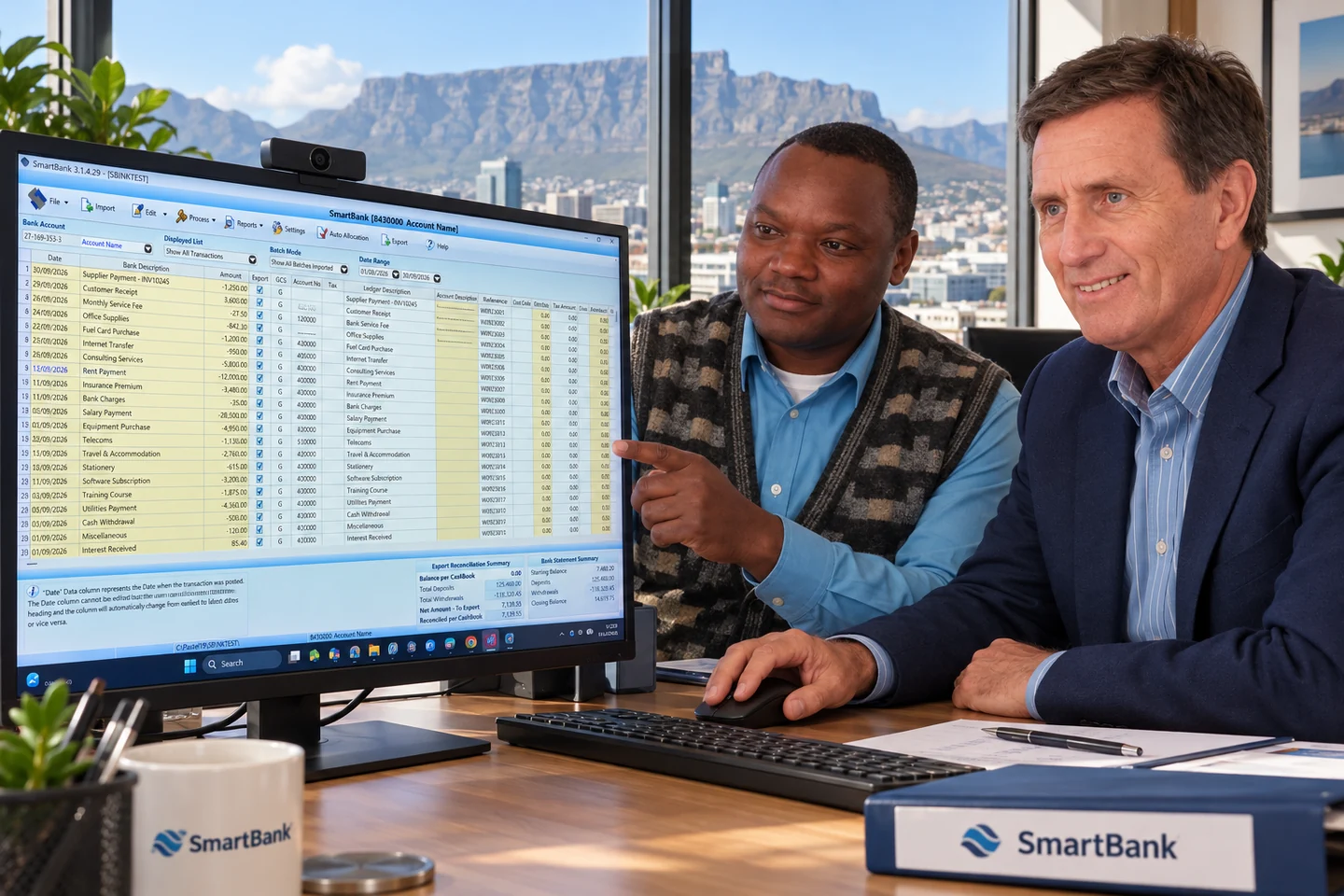
Practical automation
SmartBank was shaped around the bottlenecks bookkeepers encounter every month—not around a generic spreadsheet.
See every feature in actionSave recurring rules and apply them across future statement batches.
Reuse split transactions across multiple ledger accounts.
Clean imported descriptions and locate transactions quickly.
Keep imported activity available for lookup, reporting and audit support.
Choose the reconciled transactions that should move into the cashbook.
Works with your accounting workflow
These are examples of accounting workflows. SmartBank helps you prepare and reconcile the bank data, then export it in a format compatible with your accounting package.

Partner & Xpress workflows
CSV cashbook workflow

Offline preparation workflow

Direct export workflow
Use an export format compatible with your accounting package. Tell us which package you use—we’ll confirm the format and discuss any changes needed.
Package compatibility and export methods depend on your software version and setup.
If your accounting package isn’t listed above, please call us and we’ll update our systems to accommodate your package.
See the workflow
Start with the overview, then work through focused videos for imports, allocation, reconciliation and accounting package exports.
Browse all tutorials Featured tutorialSmartBank features overview
Built by an accountant and a systems engineer to save accountants, bookkeepers and business owners time and money—so they can focus on running the business rather than the admin of doing the books.

Built from both sides of the problem
SmartBank was created by professional accountant David Hartley and software developer Sylvain Ntumba. Their partnership combined day-to-day bookkeeping knowledge with deep accounting-software development.
More than a decade later, SmartBank is still supported and still evolving—most recently with automatic PDF conversion built directly into the bank statement import workflow.
Straight answers
Need to check a particular bank or accounting package? We’ll confirm the right route for your setup.
It imports supported bank statement files, helps you allocate and clean transactions, guides the reconciliation, and exports the finished cashbook to supported accounting software.
Use the original PDF bank statement downloaded directly from your bank. Scanned statements, photographs and image-only PDF copies are not supported. SmartBank automatically converts a supported original bank-issued PDF to CSV transaction data during import. You can then allocate transactions, reconcile the cashbook and export a file to import into your accounting package. PDF conversion produces CSV only. It does not convert PDFs to OFX or OFC. Supported password-protected PDFs can also be imported. Compatibility depends on the bank and statement layout.
Yes. Download the official CSV, OFX or OFC statement file from your bank, then import it into SmartBank. SmartBank supports bank-statement imports from South African banks; the formats available depend on your bank. Allocate transactions, reconcile the cashbook, then export the transaction file and import it into Pastel, Sage One (Sage Business Cloud Accounting), Xero or another accounting package, using the format that package requires. Contact us to confirm your bank layout and export requirements.
CSV, OFX and OFC are bank-file import options. PDF conversion produces CSV, not OFX or OFC.
No. SmartBank prepares and reconciles bank transactions before they are imported into your chosen accounting package. A standalone mode is available for demonstration and learning.
Yes. Import and convert a supported PDF bank statement, then export CSV data without accounting allocations. Alternatively, allocate and reconcile in SmartBank before exporting with allocations. The destination accounting package determines the required import format.
SmartBank includes unlimited bank-statement imports each month and PDF conversion with no per-statement conversion charge. A 15-day free trial is available for new users.
No separate AI chat or PDF conversion service is needed for supported statements. SmartBank converts the original bank PDF to CSV transaction data during import, saving the separate conversion and formatting steps.
SmartBank supports workflows for Pastel Partner and Xpress, Sage One, Xero and OSFinancials. Other desktop and online packages may accept the exported data. Contact us to confirm the format for your package and version.
Yes. Try SmartBank free for 15 days. Complete the trial form and save your details to access the Windows download and video tutorials. Contact us if you need help confirming your bank statement and accounting-package setup.
The new PDF import feature is available to existing SmartBank users at no additional charge. Contact David for help getting the current update.
Contact David with the bank name, statement format and a description of what happens. The team can investigate the layout and advise on compatibility.
Ready to see your own statement flow?
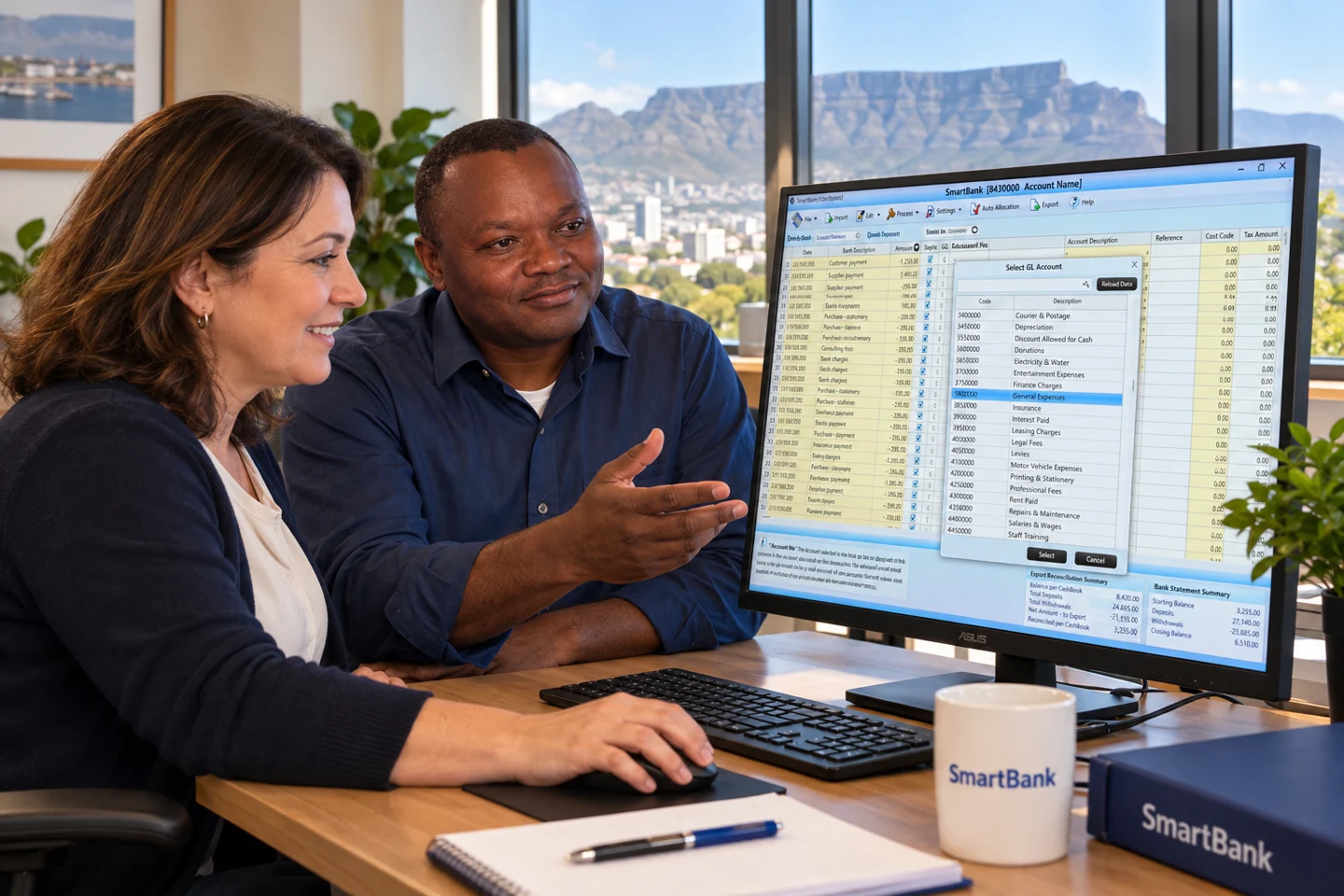
People behind the software
Check your bank statement format, accounting package or current SmartBank update with our team.
Call +27 82 061 2300